Dockerizing an EML Reader
In order to learn more about Docker, I decided to create a container for my EML Inspector app made of Python and PyFlask. This serverless application can read an EML file content to help Security Analysts run forensics on emails.
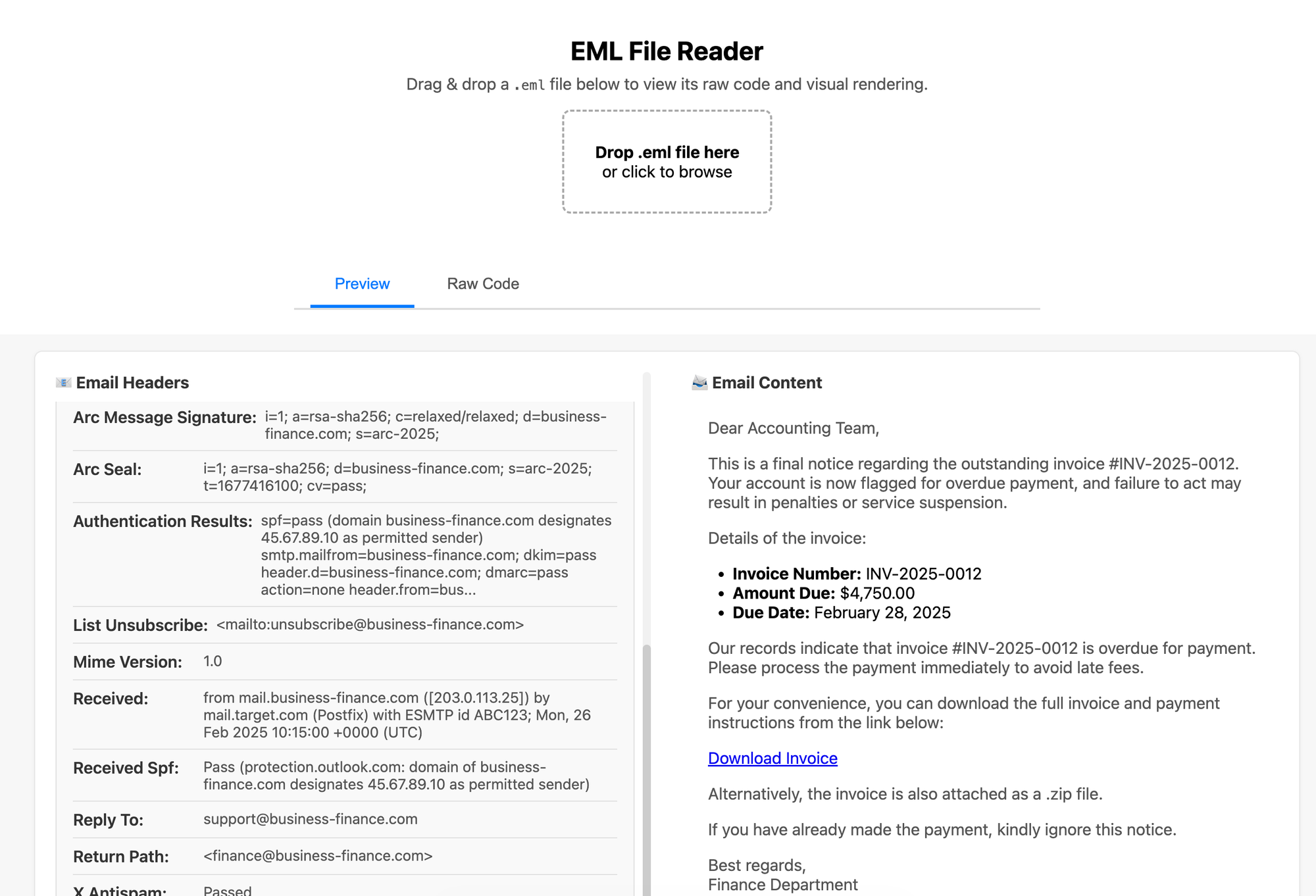
(EML File Reader application screenshot)
Step 1: Dockerizing the Flask EML Inspector
Locally, my app is a standard Flask project:
- app.py (Flask entrypoint)
- HTML form and CSS to upload .eml files and inspect the contents
Then I created my Dockerfile using nano CLI:
Dockerfile:
# Lightweight Python image
FROM python:3.12-slim

# Working directory in the container
WORKDIR /app

# Install system deps (optional but often useful)
RUN apt-get update && apt-get install -y --no-install-recommends \
    && rm -rf /var/lib/apt/lists/*

# Copy dependency list and install Python deps
COPY requirements.txt .
RUN pip install --no-cache-dir -r requirements.txt

# Copy the rest of the application code
COPY . .

# Expose Flask default port
EXPOSE 8000

# Default command to run your app
CMD ["python", "app.py"]
Requirements.txt
flaskThen, using bash, I did:
docker build -t eml-python-docker .
docker run -p 8000:5000 eml-python-docker
Application is running locally, so it's time to go to the cloud.
Step 2: Spinning Up a Lightsail Ubuntu Box
I got my Ubuntu Lightsail instance .pem key, and connected via SSH:
ssh -i "alex-portfolio.pem" ubuntu@<my-public-ip>Updated and added Docker, and let the user run Docker without sudo:
sudo apt-get update
sudo apt-get install -y docker.io
sudo systemctl enable docker
sudo systemctl start docker

# Let my user run docker without sudo
sudo usermod -aG docker $USER
Step 3: Uploading the Project
I zipped the project on my desktop, and then this is where things got interesting:
Then I tried to scp it:
scp -i "/Users/alexbaracat/Documents/Alex AWS/alex-portfolio.pem" \
"/Users/alexbaracat/Documents/GitHub/EML-Python-Docker.zip" \
ubuntu@<my-public-ip>:~/
Result:
WARNING: UNPROTECTED PRIVATE KEY FILE!
Permissions 0644 for 'alex-portfolio.pem' are too open.
SSH is strict about key permissions (which is good). The fix:
chmod 400 "/Users/alexbaracat/Documents/Alex AWS/alex-portfolio.pem"After that, I could see upload was successful.
Step 5: “It’s Running, but the Browser Says No”
I ran
docker run -d \
  --name eml-python-app \
  -p 80:5000 \
  eml-python-docker

docker ps
Output:
0.0.0.0:80->5000/tcp eml-python-app
So from Docker’s perspective, port 80 on the host is mapped to port 5000 in the container. But when I opened http://<my-public-ip> in the browser:
This site can’t be reached – connection refused
Step 6: Docker Logs to the Rescue (Port Mismatch)
At this point I remembered I should see the container logs:
docker logs eml-python-appServing Flask app 'app'
Debug mode: on
Running on all addresses (0.0.0.0)
Running on http://127.0.0.1:8000
Running on http://172.17.0.2:8000
There it was:
Flask was listening on port 8000, but Docker was forwarding to container port 5000, so no matter how many times I curled or refreshed the browser, I was hitting an empty port.
The quick fix was to match the port mapping to my app:
docker rm -f eml-python-app

docker run -d \
  --name eml-python-app \
  -p 80:8000 \
  eml-python-docker
For now, I’m just happy that a small idea (an EML reader for security analysis) went from a Flask app to a Docker container running on AWS, serving real traffic on the open internet.
Learning outcomes:
This deployment taught me a lot more than “how to run Docker on Lightsail.” I got hands-on with:
- Building a Docker image from a simple Flask app
- Dealing with SSH keys and scp safely (and why key permissions matter)
- Understanding how Docker port mapping really works
- Using Docker logs and curl from inside the server to debug connection issues
I believe it's important to post where I made mistakes, so I can have a reference to look back and improve in my next attempt.